
Workflow
Cortex: tasks, notes & code
Cortex is a full task manager right inside VS Code: your tasks, notes, code links and time in one place, built so you never have to leave the editor to plan. Every interaction with it also counts as active work for the Activity Tracker(state "Planning...").
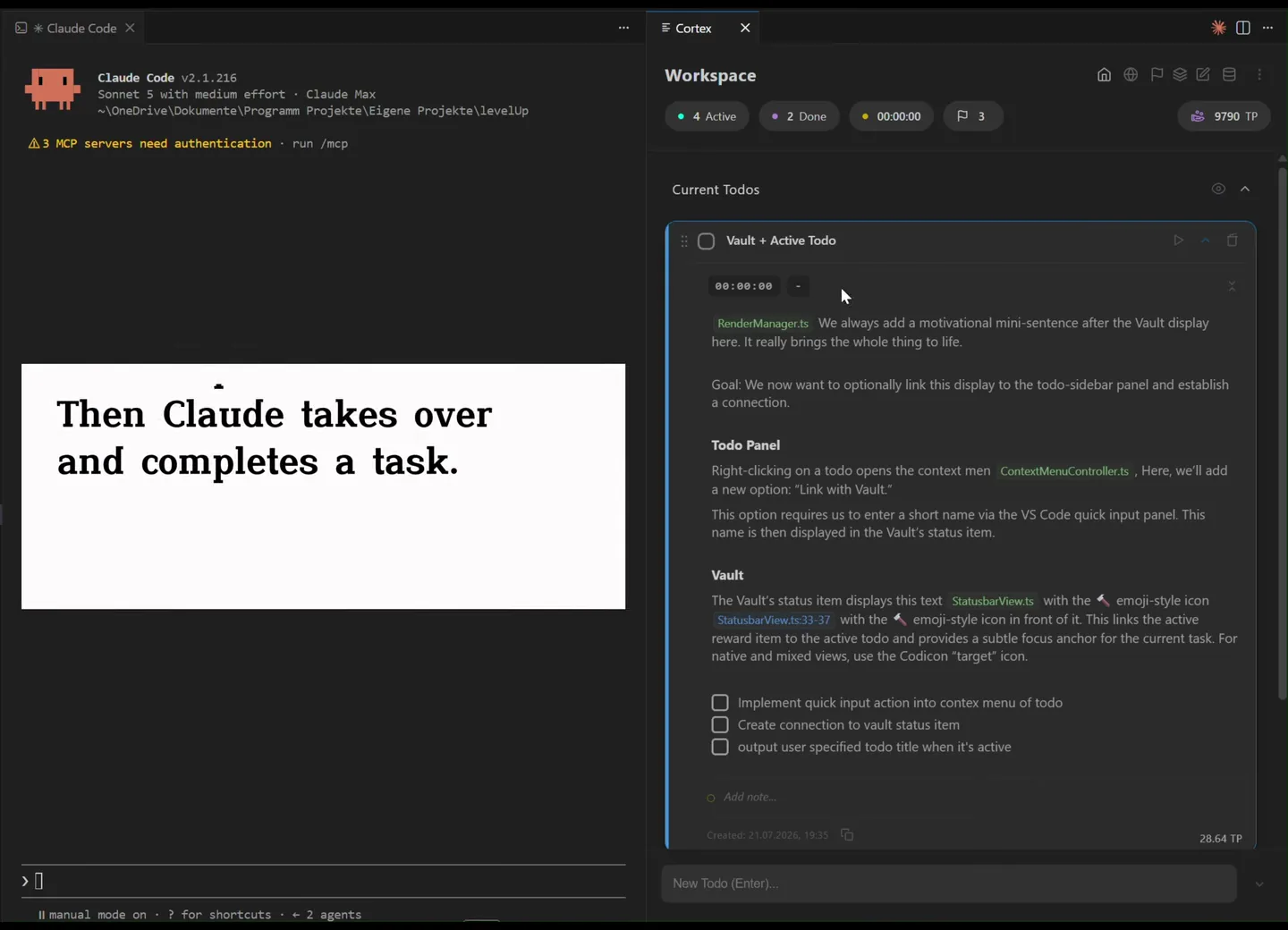
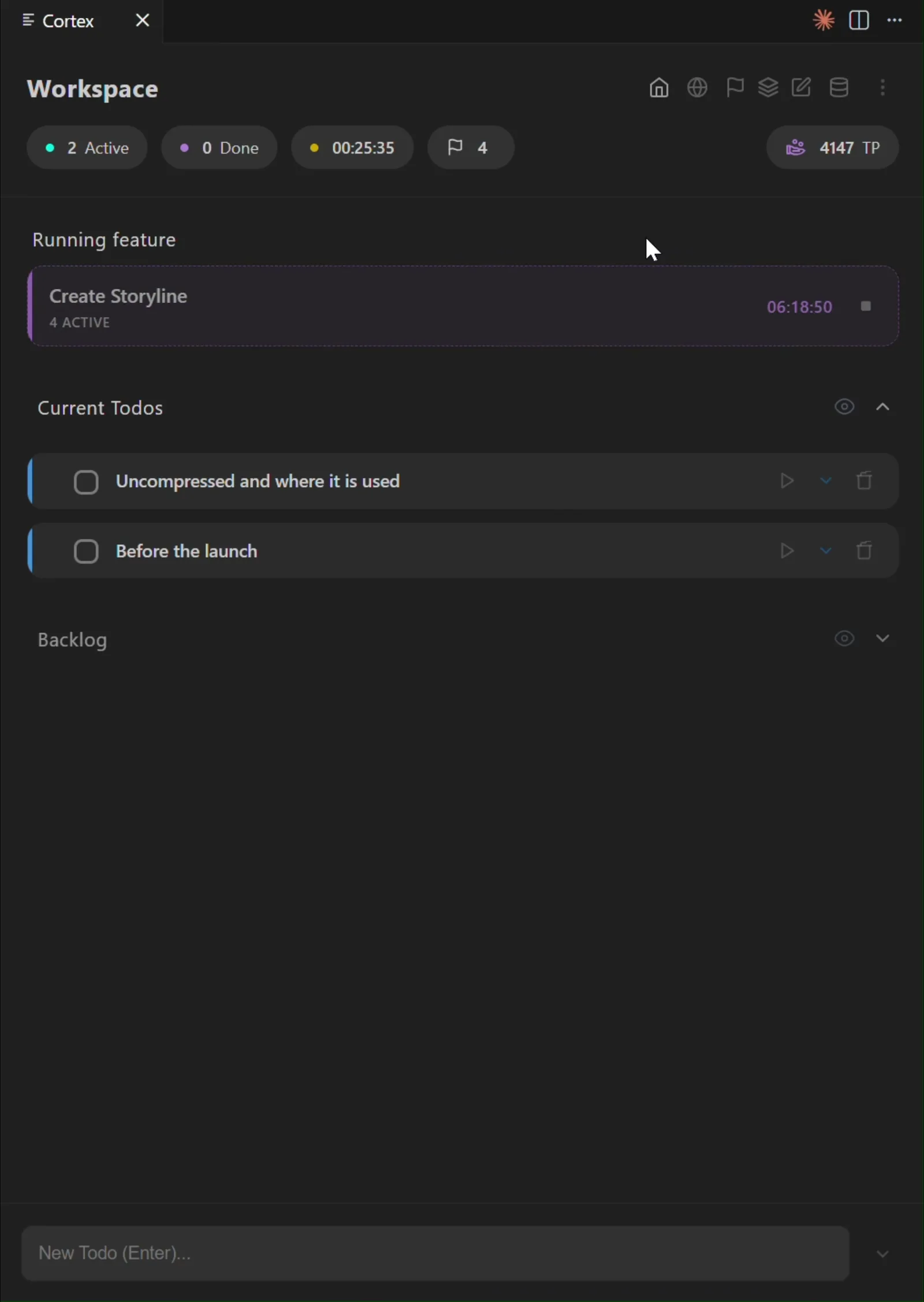
Every todo belongs to the workspace it was created in by default, the same project you have open in VS Code right now. Need a todo that is not tied to a single project? Switch to the global todos view instead. Want to check or edit another project's todos without leaving your own? Open it through the Workspace overview, make your edits there, and come back without ever switching your VS Code window.
A todo in detail
Every todo has a title and a description with markdown support (headings, bold, italic, lists, quotes). Inside the description you can keep sub-steps as a checklist: - [ ] for open, - [x] for done. Break a bigger task into traceable sub-steps without creating separate todos for them.
Long descriptions can be folded away with toggle blocks, a Notion-style element you can use to hide, say, the original task or a long solution log while the title stays visible.
Beyond open/done there are three more status tags:
| Tag | Meaning |
|---|---|
| Backlog | Relevant, but not now, hidden from the current list |
| Pending | Implemented, but still waiting for your confirmation/test |
| Priority | Sorted above the normal todos in the current list |
Notes are short, color-coded log entries right on the todo: neutral, success, failed or informative. With them you record the progress of a task without constantly rewriting the description itself. Click one to cycle its color, or press Tab while writing a note to do the same.
Progress hexagon
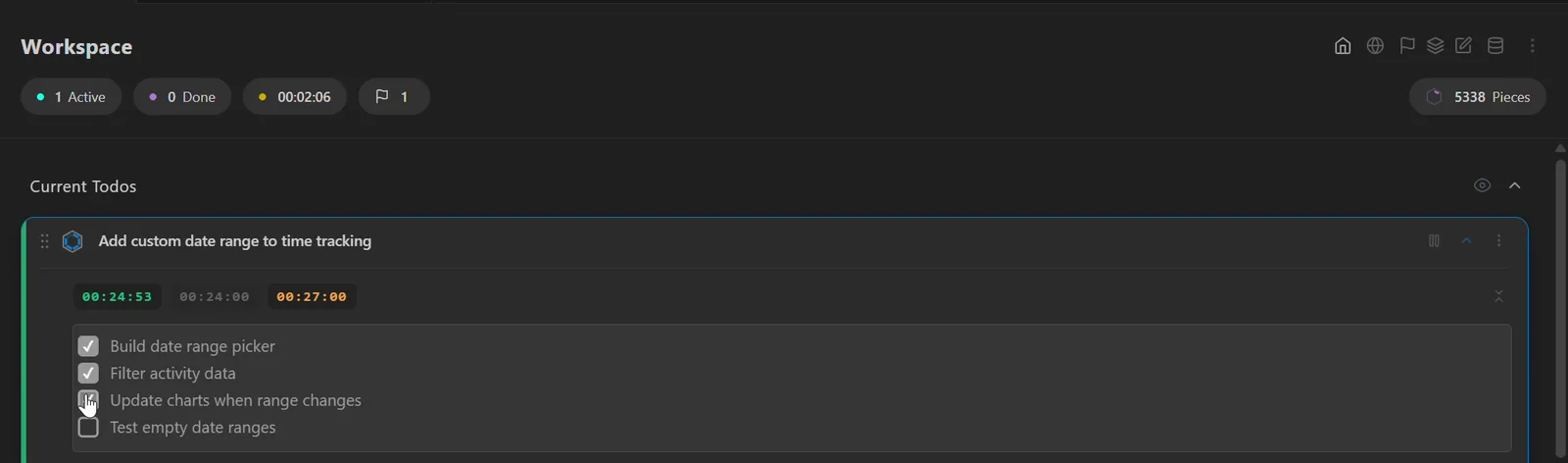
In Cortex, every todo can use a progress hexagon, officially called a Cell, instead of a standard checkbox. Its six outer segments show the todo’s progress and fill automatically as you add details, complete subtasks, and log time. The center dot only fills when you mark the todo as done. Prefer standard checkboxes? You can switch back at any time in the display options.
Timer & estimation
Every todo has its own start/stop timer that records the invested time. On top of that you can set a target time. If you go over it, that estimate locks in as a "Locked Estimation" and its history is kept. Over time this shows you exactly how accurate your estimates are, so you can calibrate them instead of forgetting every miss right after finishing a todo.
Vault & Terminal Linking
Right-click your active todo and choose Link to Vaultto put its title directly into the Vault status bar item, right next to your reward. It keeps the task you are actually working on in view alongside the thing it earns you, so the two never feel disconnected. Stop the todo's timer and the link clears itself automatically.
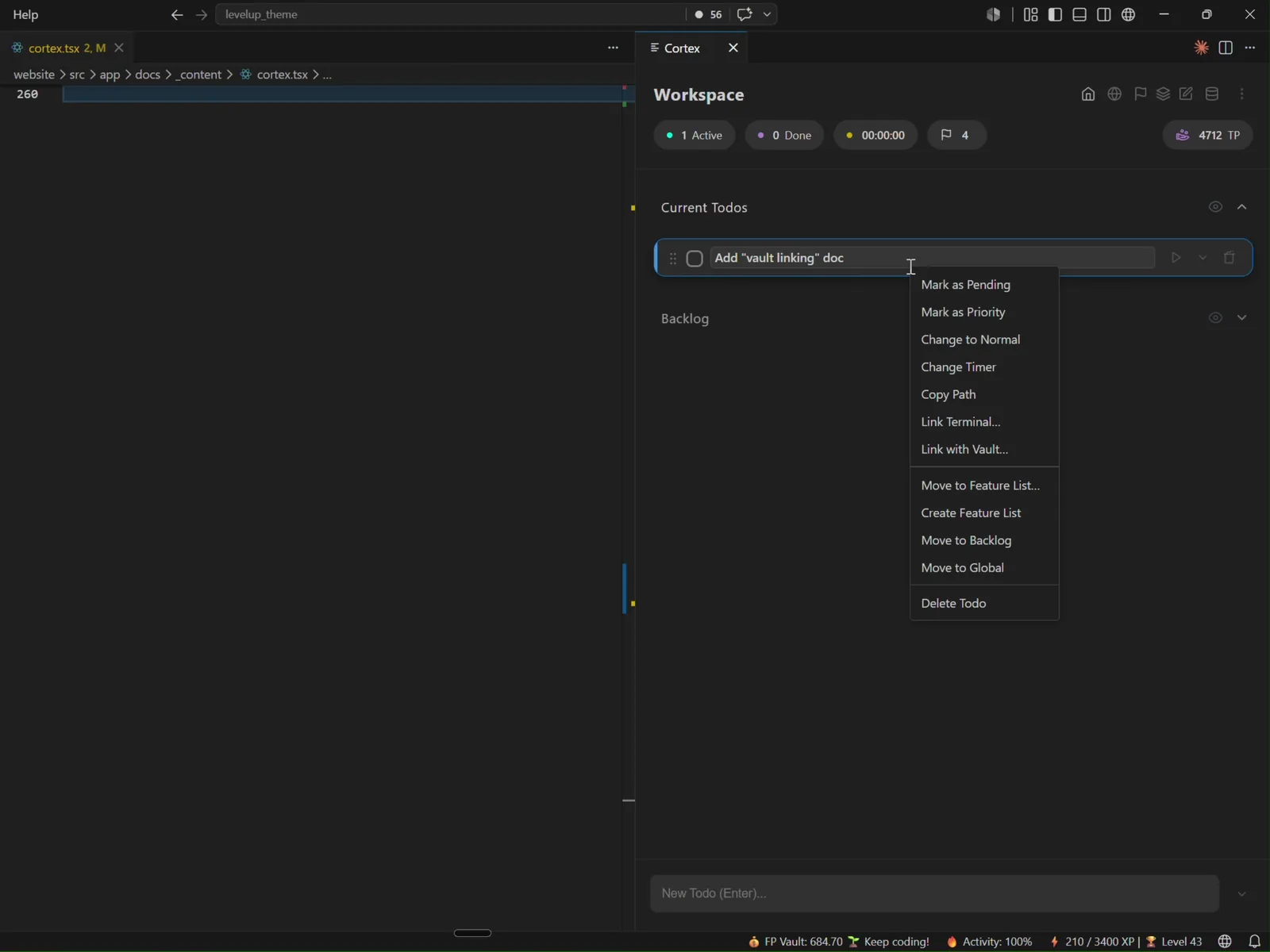
The same right-click menu also lets you link a running terminal to a todo. One click on the linked terminal jumps you straight back to it, so it is always one click away from wherever you are.
Link code from the editor
With Ctrl+Alt+T (Cmd+Alt+T on Mac) you link a selected piece of code to the todo you last wrote in. The extension automatically inserts a clickable link at your writing position in the description. Ctrl+Alt+R (Cmd+Alt+R on Mac) jumps back exactly to where you last were in a todo description. So you can switch between code and planning without using the mouse or losing context.
Alternatively a link can be written directly as text (@src/path/to/File.ts:10-20). The extension automatically resolves it into a clickable link.
Five views in Cortex
Cortex is not one single list. It is five different views for five different jobs, from your everyday project todos to a searchable log of everything that happened. Jump straight to the one you need:
| View | What it is for |
|---|---|
| Workspace & Global todos | Your everyday task list, per project or shared across all of them |
| Epics | A bigger task broken down into its own mini-list |
| Workspace overview | Every project you keep todos in, one glance at all of them |
| Notes overview | Every markdown note you keep, one searchable list |
| Activity Log | A searchable history of everything that happened in Cortex |
Workspace & Global todos
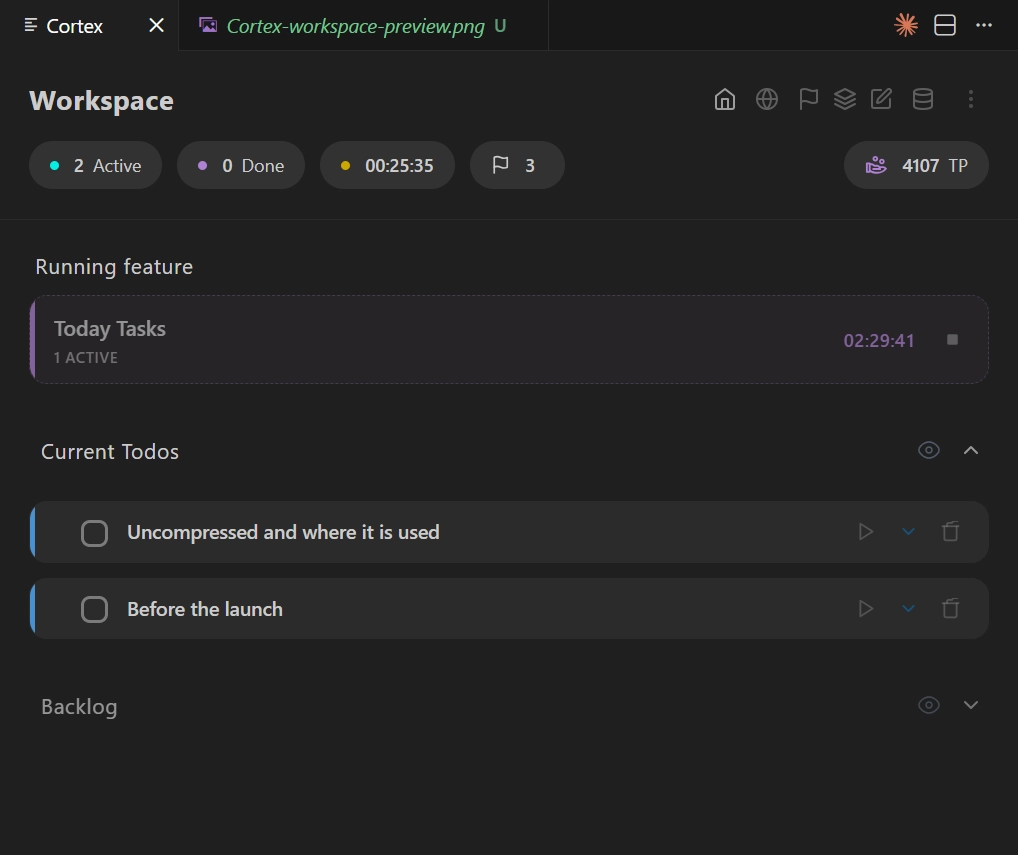
Your everyday task list. Every todo lives in the project you created it in, and only shows up there. Global todos use the exact same view without that project boundary, for things that do not belong to a single codebase. A small button in the header opens the folder either list is stored in.
Epics
A bigger task becomes its own mini-list. An Epic holds the goal and context, breakdown todos underneath do the actual work. The Epic's timer starts and stops itself, running automatically whenever any of its breakdown todos is running.
Workspace overview
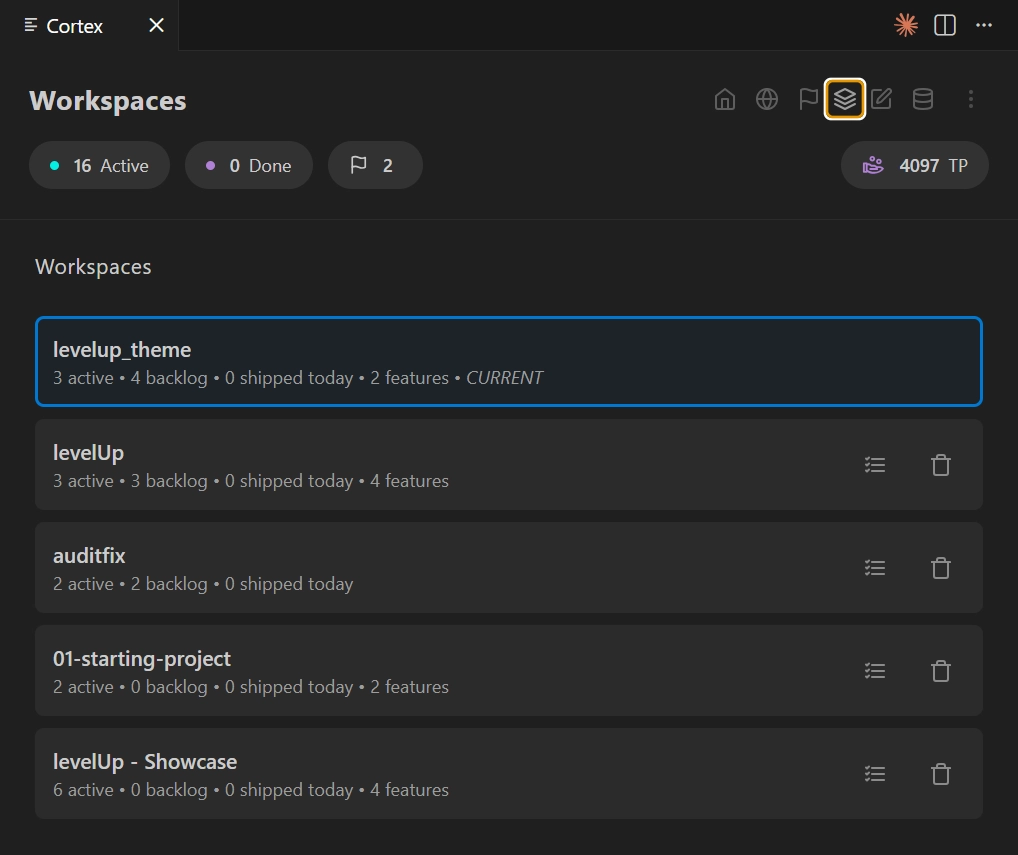
A list of every workspace you keep todos in, with active, backlog and shipped counts at a glance. Click an entry to open that workspace. From here you can also open another project's list as a Foreign List, make a quick edit, and leave again without having to switch workspaces.
Notes overview
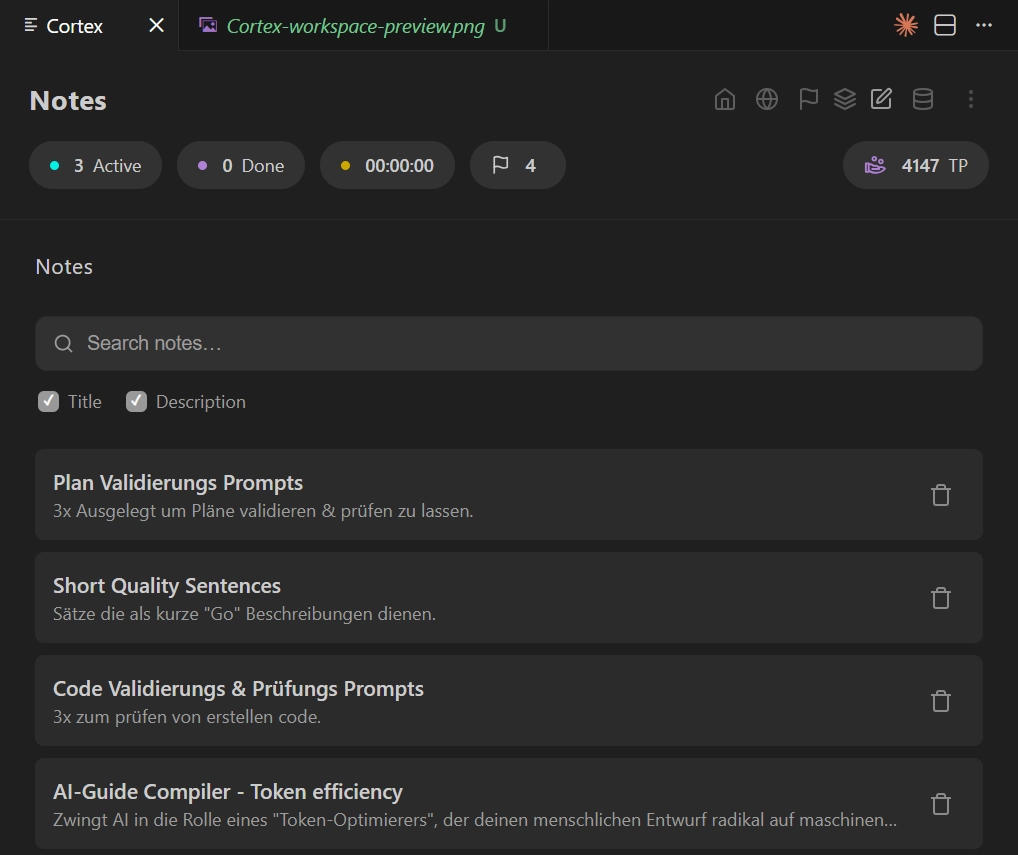
Every note you keep lives as its own markdown file, listed here and searchable by title or text. Click one and it opens straight in the editor, no digging through folders to find it.
Activity Log
A chronological record of everything that happens across your todos: created, checked off, timer started, note added. Today and yesterday stay separate from the older archive. It is built for the rare moment you want to look something up, like checking what you actually worked on last Tuesday or a few hours ago.
Supports the human & AI workflow
The system automatically creates two files: a TODO-AI-GUIDE.md that explains the format to an AI, and a USER-TODO-AI-RULES.md in which you set your own rules that every AI reads first before touching your todos.
For everyday updates the AI never opens the raw todo file. It reads a compact STATE.md, generated for it with every id, checklist index and note already listed, and writes back through journal.md with one short line per action, like check 123 2 or note 123 success Fixed the bug. The extension applies each line and regenerates STATE.md. You keep editing the todo yourself exactly as before, ticking checkboxes and writing notes by hand. Only rare edits (rewriting a description, deleting a todo) still go through the raw JSON. A journal line costs a handful of tokens instead of the thousands a full JSON edit needs, so an AI can keep your todos in sync without eating into your context.
Via a copy button or the context menu, every todo can be copied as a ready prompt snippet (including its location and ID) and handed straight to an AI assistant, which can then follow and work on the todo on its own.
Pieces
Timers, typing, notes, new todos and code links additionally give small amounts of their own mini-currency, Pieces. They collect per todo, move into a shared pool on completion, and can be claimed there at a rate of 10 Pieces = 1 XP.