
Core Systems
Time Tracking
Overview
What counts as work time?
All activity states except Idle and Inactive count as work time. If VS Code remains open while you are not working, that time may still be counted as Work.
To exclude this time from a chart, simply click Work in the chart legend. For the most accurate automatic time tracking, close VS Code when you finish working.
What counts as a specific state, such as Terminal?
You can find a detailed explanation of every activity state on the Activity Tracker page. Work in VS Code groups Coding, Review, Planning, Terminal and General Work — see the Activity Tracker states for how LevelUp detects each one, including the Outside battery and the difference between Idle and Inactive.
Extended Outside counts as work time here. It does not count as Active Time on the Dashboard or Leaderboards.
Read the overview
The left card summarizes your Work Time.
| Number | Meaning |
|---|---|
| In VS Code today | Work recorded in active VS Code states |
| Work today | VS Code Time, Outside and Extended Outside |
| Avg. per active day · 7d | Average Work Time across the last seven days that contained at least 30 minutes of work |
| Tracked Time | Work Time plus Idle |
A day below 30 minutes still adds to Work Time. It does not count as a Work Day in averages or work-day totals.
The Today chart includes Idle even though Idle does not count as Work Time. Its centre value is Tracked Time.
Tracked Time = Work Time + Idle
Compare days and inspect a session
Each bar is one day. Switch between the three views, then click a bar to open its strip chart.
| View | What it shows |
|---|---|
| Projects | Work Time attributed to each project |
| Activity states | The detailed states recorded during each day |
| Grouped states | Work in VS Code, Outside, Extended Outside and Idle |
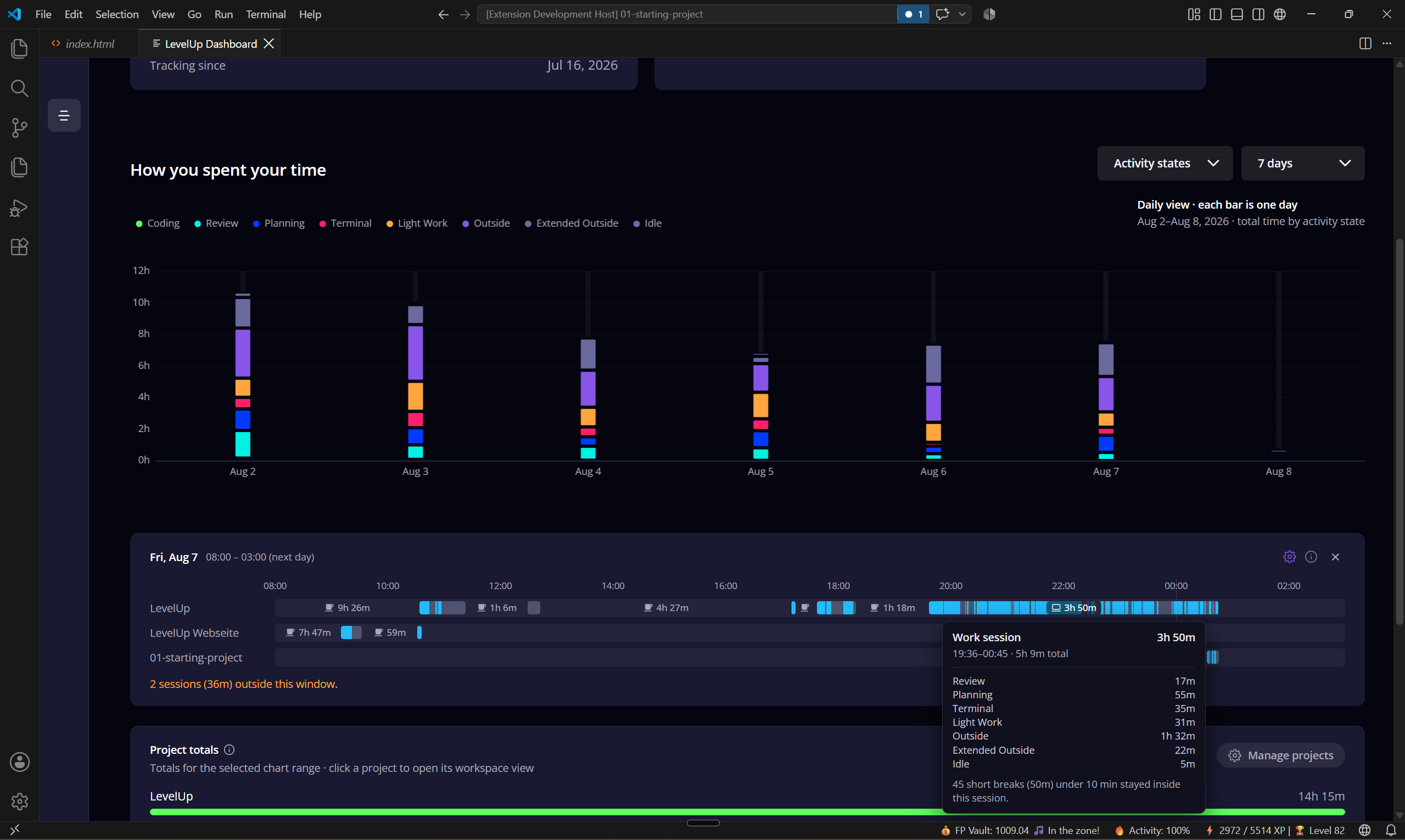
- Each row is one project and each colored bar is one work session.
- By default, gaps under 10 minutes stay inside the session as muted sections. Change this threshold in the strip settings.
- Hover a session to see its exact start, end, duration, project and recorded states. Empty space means no activity was recorded.
Project Work Time
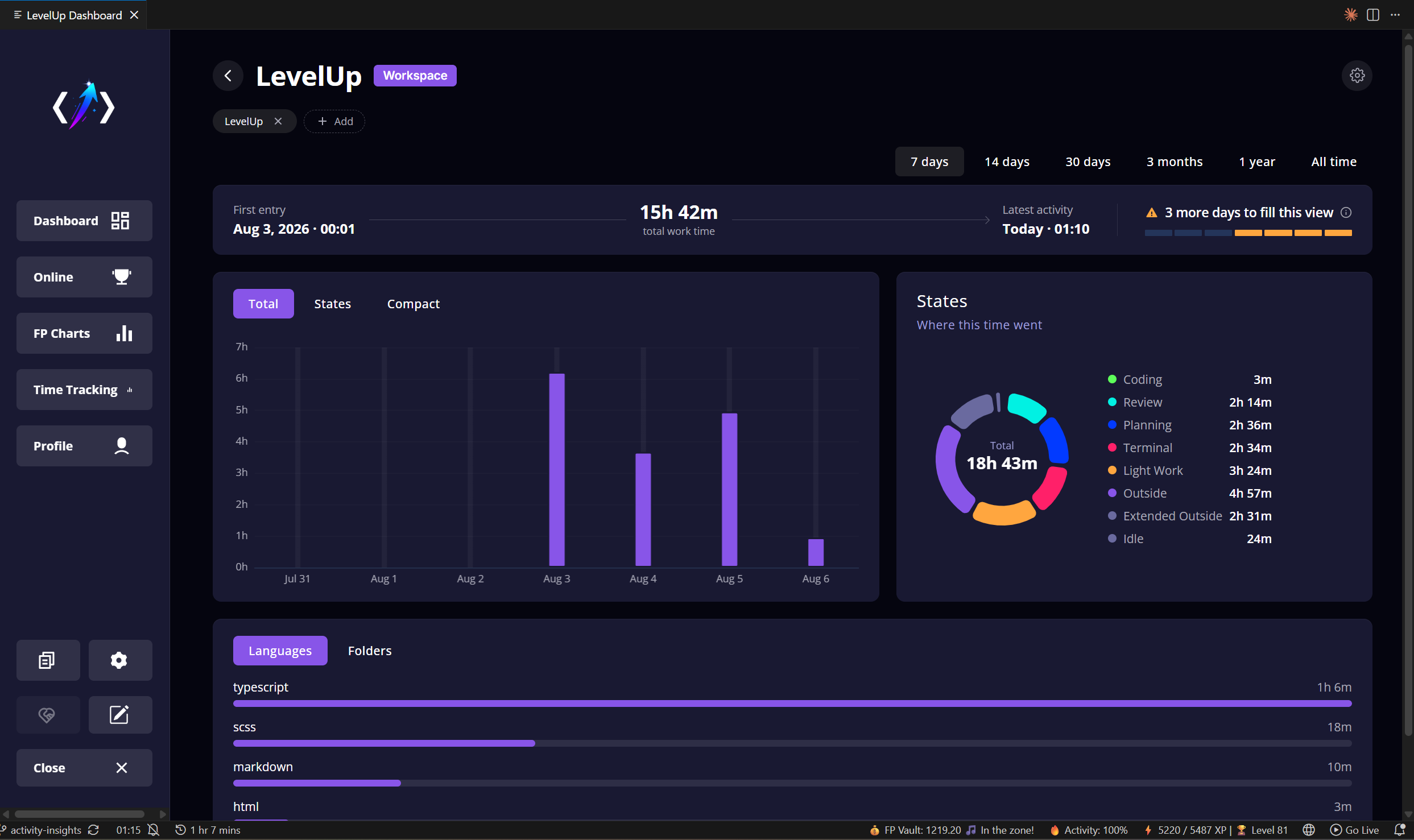
In Projects view, click a project to open its workspace details. The page shows daily totals, states, Work Days, languages and folders. Add related workspaces to inspect them together.
Language and folder totals only include VS Code Time. Activity outside the editor can belong to a project, but not to a file or language. Older time that cannot be assigned reliably stays in global Work Time instead of being guessed.
Where is my data saved?
Locally, inside VS Code's own per-extension storage folder — the same globalStorage path VS Code assigns to every extension, keyed by its publisher and name.
| OS | Path (for VS Code / “Code”) |
|---|---|
| Windows | %APPDATA%\Code\User\globalStorage\sinandev.levelup\ |
| macOS | ~/Library/Application Support/Code/User/globalStorage/sinandev.levelup/ |
| Linux | ~/.config/Code/User/globalStorage/sinandev.levelup/ |
On a fork, only the app name in the path changes, for example Cursor, VSCodium, Windsurf or Code - Insiders — the rest of the path stays identical.
Accuracy and privacy
Time Tracking uses the timestamped states recorded by the Activity Tracker. The interface rounds most totals to minutes, while the underlying records keep more precise timestamps.
Idle Detection helps LevelUp distinguish passive VS Code use, terminal work, activity outside the editor and time away from the computer. It reads no input content and stays local.
Time Tracking works offline and stores its history on your computer. It never stores your code content. Data from another open VS Code window appears after that window's next save.